All posts
Adding a pop up to your Shopify store can help you collect email subscribers, promote discounts, highlight important announcements, and encourage visitors to take action. The good news is that you do not need advanced coding skills to get started.
Shopify stores can add pop ups in several ways, including using Shopify Forms, a dedicated pop up app, or custom code. The right option depends on what you want the pop up to accomplish and how much control you need over its design, targeting, and behavior.
In this guide, you’ll learn how to add a pop up on Shopify, how to choose the right setup method, how to configure triggers, and how to create a pop up that provides a useful experience for your visitors.
Boost Your Conversion Instantly with Nudgify: Turn your website visitors into customers with real-time Social Proof and FOMO Nudges. Get Started Now →

What Is a Pop Up on Shopify?
A Shopify pop up is a small window or overlay that appears on top of your store’s content when a visitor meets a specific condition. For example, a pop up might appear after someone spends a certain amount of time on a page, scrolls down, clicks a button, or shows signs of leaving.
Shopify pop ups can serve different purposes depending on your store’s goals. Common uses include collecting email addresses, offering a first order discount, promoting a product, displaying an announcement, or recovering visitors who are about to leave.
What Can You Use a Shopify Pop Up For?
- Email collection: Encourage visitors to join your newsletter or mailing list.
- Discount offers: Give new customers a discount code for their first purchase.
- Product promotions: Highlight new products, seasonal offers, or special collections.
- Exit intent: Display a relevant message when a visitor is about to leave.
- Announcements: Share important information about shipping, promotions, or store updates.
- Lead generation: Collect information from potential customers.
- Surveys: Ask visitors for feedback or preferences.
3 Ways to Add a Pop Up on Shopify
There are three common ways to add a pop up to a Shopify store. You can use Shopify Forms, install a dedicated pop up app, or create a custom solution using code.
| Method | Best For | Technical Skill | Customization |
|---|---|---|---|
| Shopify Forms | Email and lead capture | Low | Moderate |
| Pop Up App | Advanced campaigns and targeting | Low | High |
| Custom Code | Full control over implementation | High | Very high |
How to Add a Pop Up to Shopify With Shopify Forms
Shopify Forms is a practical option if your main goal is collecting customer information, such as email addresses. It lets you create forms that can appear as pop ups on your storefront without requiring you to build the entire experience from scratch.
Step 1: Install Shopify Forms
From your Shopify admin, find Shopify Forms and install the app if it is not already available in your store.
Increase Trust & Sales with Social Proof
Boost trust, engagement, and conversions with Social Proof — tailored for any industry and easy to integrate. Seamlessly manage client access with our team portal.

Once installed, you can use the app to create forms for your storefront and configure how they appear to visitors.
Step 2: Enable the Forms App Embed
After installing Shopify Forms, open your Shopify theme editor and check the App embeds section. Make sure the Forms app embed is enabled so the form can appear on your storefront.
This step is important because an installed app may not automatically display its storefront features until the corresponding app embed is activated in your theme.
Step 3: Create a Pop Up Form
Open Shopify Forms and create a new form. Select the option for a pop up form if you want the form to appear as an overlay rather than as a section embedded directly into a page.
Choose the information you want to collect. For a simple newsletter campaign, an email address may be enough. Avoid asking for unnecessary information because every additional field can make the signup process more demanding for visitors.
Step 4: Customize the Pop Up
Customize the appearance and content so the pop up matches your Shopify store.
- Add a clear headline.
- Explain the benefit of signing up.
- Use a concise call to action.
- Match your store’s colors and branding.
- Keep the form easy to complete.
- Check how the design looks on mobile devices.
Your message should tell visitors what they get in return for taking action. For example, instead of simply saying “Subscribe to our newsletter,” you could explain that subscribers will receive product updates, special offers, or useful content.
Step 5: Choose When the Pop Up Appears
The timing of a pop up can have a significant effect on the visitor experience. Depending on the available settings, you may be able to show the form when someone first visits, after a delay, or on specific pages.
Choose a trigger that matches the purpose of your campaign instead of displaying the same message to every visitor immediately.
Step 6: Preview and Activate the Pop Up
Preview your pop up before activating it. Check the wording, form fields, buttons, images, spacing, and close option.
Test the experience on both desktop and mobile devices to make sure visitors can easily understand and interact with the pop up.
How to Add a Pop Up Using a Shopify Pop Up App
A dedicated Shopify pop up app can be useful when you need more advanced controls than a basic form provides. Depending on the app, you may have access to additional templates, targeting options, triggers, analytics, integrations, and personalization features.
Step 1: Choose a Pop Up App
Before installing an app, consider what you actually need from your campaign.
- Triggers: Can you control when the pop up appears?
- Targeting: Can you show different messages to different visitors?
- Templates: Does it provide designs that suit your store?
- Analytics: Can you measure views, clicks, and conversions?
- Mobile support: Does the pop up work well on smaller screens?
- Integrations: Can it connect with the tools you already use?
Step 2: Install the App
Install the Shopify pop up app through the Shopify App Store and follow its setup instructions.
After installation, check whether the app requires you to activate an app embed through your Shopify theme editor.
Step 3: Enable the App Embed
If the app uses an app embed, open your Shopify theme editor and activate the relevant embed. This allows the app’s storefront functionality to load on your website.
If the pop up does not appear after publishing, checking the app embed should be one of your first troubleshooting steps.
Step 4: Create and Customize Your Pop Up
Choose a template or start with a blank design. Add your headline, supporting text, image, form fields, and call to action.
Keep the content focused on one action. A visitor should immediately understand what the pop up is offering and what they need to do next.
Step 5: Configure Display Rules
Use the app’s display rules to determine when and where the pop up appears.
Common options include time delays, scroll percentage, exit intent, specific URLs, visitor type, and device targeting.
Step 6: Publish and Test
Publish the campaign only after testing the complete experience. Submit the form yourself and confirm that the intended action, such as email collection or a discount offer, works correctly.
How to Add a Shopify Pop Up With Custom Code
If you need complete control over how a pop up looks and behaves, you can create one using your Shopify theme’s code. This approach can involve HTML, CSS, JavaScript, and Shopify Liquid, depending on the implementation.
When Should You Use Custom Code?
Custom code can make sense when you have specific technical requirements that available apps cannot meet or when you have a developer who can maintain the implementation.
For most store owners, however, using Shopify Forms or a dedicated Shopify pop up app is simpler and easier to maintain.
What You Need to Consider
- Theme compatibility
- Mobile responsiveness
- JavaScript behavior
- Page loading performance
- Theme updates
- Potential conflicts with other apps
- Ongoing maintenance
Always make a backup or duplicate of your theme before making significant code changes.
Which Shopify Pop Up Method Should You Use?
The best method depends on your campaign goals, technical experience, and the amount of control you need.
| If You Want To… | Consider |
|---|---|
| Collect email subscribers | Shopify Forms |
| Create advanced campaigns | Dedicated pop up app |
| Use advanced targeting | Dedicated pop up app |
| Have complete technical control | Custom code |
| Avoid coding | Shopify Forms or a pop up app |
How to Choose the Right Pop Up Trigger
Adding a pop up is only the first step. You also need to decide when the pop up should appear. Showing the right message at the right moment can make the experience more relevant to visitors.
Time Delayed Pop Ups
A time delayed pop up appears after a visitor has spent a certain amount of time on your site or page. This gives visitors an opportunity to start browsing before asking them to take another action.
This can work well for newsletter signup campaigns where the visitor does not need to see the offer immediately.
Exit Intent Pop Ups
An exit intent pop up is designed to appear when a visitor shows behavior associated with leaving the page. It can be used to offer help, remind visitors about an offer, or encourage them to complete an action.
For example, an online store could use an exit intent message to remind a visitor about an available discount rather than interrupting them as soon as they arrive.
Scroll Triggered Pop Ups
A scroll triggered pop up appears after someone has viewed a certain portion of a page. This can be useful when you want visitors to interact with your offer only after they have engaged with your content.
Click Triggered Pop Ups
A click triggered pop up appears after a visitor actively clicks an element on your website. This is useful when the visitor has already indicated interest in receiving more information.
Page Specific Pop Ups
Instead of showing the same pop up throughout your entire store, consider matching the message to the page the visitor is viewing.
A product page, for example, may benefit from a product related message, while a blog page may be better suited to a newsletter signup.
How to Create a Shopify Pop Up That Doesn’t Annoy Visitors
A pop up should help the visitor, not get in the way of what they are trying to accomplish. Poor timing, irrelevant offers, and difficult close buttons can create a frustrating experience.
Keep the Message Relevant
Match your message to the visitor’s context. A person reading a blog post may respond differently to someone browsing a product page.
Don’t Show the Same Pop Up Repeatedly
Use frequency controls when available so visitors do not see the same message every time they navigate to another page.
Make It Easy to Close
Visitors should be able to dismiss a pop up without searching for the close button. A clear close option is especially important on mobile devices.
Design for Mobile
Make sure the popup fits comfortably on smaller screens. Text should be readable, buttons should be easy to tap, and the form should not cover more content than necessary.
Match the Pop Up to the Page
A relevant message is more useful than a generic promotion. Consider the product, content, or action the visitor is currently viewing when deciding what to display.
Use One Clear Call to Action
Give the visitor one obvious next step. A focused CTA such as Get the Discount, Join the List, or Shop the Offer is easier to understand than several competing actions.
Shopify Pop Up Examples for Different Goals
Email Signup Pop Up
Use an email signup pop up to invite visitors to join your newsletter. Explain what subscribers will receive instead of relying on a generic signup request.
First Order Discount Pop Up
Offer a first order discount to eligible new visitors. Make the conditions clear and explain how the visitor can use the discount.
Exit Intent Pop Up
Use an exit intent campaign to provide a final relevant message before a visitor leaves. The message could promote an offer, provide assistance, or encourage a visitor to continue shopping.
Product Promotion Pop Up
Highlight a new product, seasonal collection, or limited promotion. Keep the message directly related to what the visitor is browsing.
Announcement Pop Up
Use an announcement pop up for important store information such as shipping updates, major promotions, or new launches.
Social Proof Pop Up
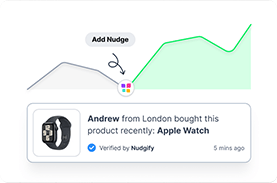
Social proof notifications can show activity such as recent purchases, signups, or other relevant customer actions. When used carefully, these notifications can provide additional context and reassurance without requiring visitors to interact with a traditional form.
How to Test Your Shopify Pop Up Before Launching
Always test your pop up before sending real visitors to it. A campaign can look correct in the editor but behave differently on an actual storefront.
- Desktop appearance: Check the layout, spacing, images, and buttons.
- Mobile appearance: Make sure the pop up fits the screen and is easy to close.
- Trigger behavior: Confirm that the pop up appears under the conditions you selected.
- CTA: Click every button and verify that it leads to the intended action.
- Form submission: Submit the form and confirm that the information is captured correctly.
- Discount codes: Test the code if your campaign includes a promotional offer.
- Page targeting: Make sure the pop up appears only where you want it.
- Frequency: Check whether returning visitors are seeing the campaign as intended.
How to Measure Shopify Pop Up Performance
Once your pop up is live, monitor its performance rather than assuming that more impressions automatically mean better results.
Important Metrics to Track
- Impressions: How often the pop up is displayed.
- Clicks: How many visitors interact with the CTA.
- Conversion rate: The percentage of visitors who complete the desired action.
- Email signups: The number of new subscribers generated.
- Revenue: Sales associated with campaigns that use promotional pop ups.
Use these metrics to identify opportunities for improvement. If many people see the pop up but few take action, test the message, offer, CTA, timing, or targeting rather than simply showing it more frequently.
Shopify Pop Up Not Showing? Common Fixes
If your Shopify pop up is not showing, work through the following checks before changing the entire campaign.
Check Whether the App Embed Is Enabled
If you are using Shopify Forms or a third party app that relies on an app embed, check your theme editor to make sure the relevant embed is active.
Check the Pop Up’s Display Rules
Your pop up may be working correctly but not meeting its configured conditions. Review the trigger, delay, scroll percentage, device settings, and visitor targeting.
Check Your Page Targeting
If the campaign is limited to specific pages, confirm that you are testing it on a page where the campaign is supposed to appear.
Test in a Private Browser Window
Some campaigns use visitor behavior or frequency settings. Testing in a private browsing window can help you determine whether previous visits are affecting what you see.
Check Mobile Settings
If the pop up appears on desktop but not mobile, review any device specific display settings and test the storefront on an actual mobile device.
Check for Theme or App Conflicts
Other apps, scripts, or theme customizations can sometimes interfere with storefront elements. If the problem started after another change, review the recent updates and test accordingly.
Shopify Pop Up Best Practices
- Give every pop up one clear objective.
- Make the offer relevant to the page and visitor.
- Use appropriate timing instead of interrupting visitors immediately.
- Keep the copy short and easy to scan.
- Use a clear call to action.
- Make the pop up easy to close.
- Optimize the experience for mobile.
- Control how frequently visitors see the campaign.
- Test different messages, offers, and triggers.
- Track conversions and adjust the campaign based on performance.
Key Takeaways
- You can add a pop up on Shopify using Shopify Forms, a dedicated popup app, or custom code.
- Shopify Forms is a practical option for straightforward email and lead capture campaigns.
- A dedicated Shopify pop up app can provide additional targeting, triggers, templates, integrations, and analytics.
- Custom code provides more technical control but requires development knowledge and ongoing maintenance.
- Choose your popup trigger based on the visitor’s behavior and the goal of your campaign.
- Always test your pop up on desktop and mobile before publishing it.
- Monitor impressions, clicks, conversions, signups, and revenue to understand how your campaign performs.
- A useful pop up should be relevant, easy to understand, easy to close, and shown at an appropriate time.
People Also Ask
Can you add a pop up to Shopify?
Yes. You can add a pop up to Shopify using Shopify Forms, a third party pop up app, or custom code. The simplest option depends on whether you need basic lead capture or more advanced targeting and campaign controls.
Does Shopify have a built in pop up?
Shopify supports pop up forms through Shopify Forms. You can use the app to create forms that appear as pop ups on your storefront and configure their appearance and display behavior.
How do I add an email pop up to Shopify?
You can create an email capture pop up using Shopify Forms or a Shopify app that supports email signup campaigns. Create the form, customize the message and CTA, configure when it appears, and test the signup process before publishing it.
How do I add a discount pop up to Shopify?
Create a pop up using Shopify Forms or a dedicated Shopify popup app, then add your discount offer and call to action. Make the discount terms clear and test the code before launching the campaign.
How do I add an exit intent pop up to Shopify?
Use a Shopify pop up solution that supports exit intent triggers. Configure the campaign to display when visitors show behavior associated with leaving, then test it on desktop and mobile before publishing.
Why is my Shopify pop up not showing?
Check whether the app embed is enabled, then review the pop up’s triggers, page targeting, device settings, frequency rules, and other display conditions. Theme or app conflicts can also affect how storefront pop ups appear.
Can I add a Shopify pop up without an app?
Yes. You can create a custom pop up using your Shopify theme’s HTML, CSS, JavaScript, and Liquid where appropriate. This provides more control but generally requires more technical knowledge and maintenance than using Shopify Forms or a dedicated app.
How do I make a Shopify pop up mobile friendly?
Use a responsive design that fits smaller screens, keeps text readable, provides buttons that are easy to tap, and includes a clearly visible close option. Always test the pop up on an actual mobile device before publishing it.
Related Articles